How to verify Domain Ownership on Network Solutions through TXT Value

Quick Answer
To verify domain ownership on Network Solutions using a TXT record, log in to your account, access your domain’s DNS settings, and add a TXT record with the verification value provided by the service. Once added, return to the platform and complete the verification process after the record propagates.
Steps to Verify Domain Ownership on Network Solutions
1. Log in to your Network Solutions account
Go to your Network Solutions Account
Enter your ‘Username’ and ‘Password’
2. Open your domain settings
Go to your domain list
Find the domain you’re looking for and click Settings

3. Open Contact settings
Scroll down to “Domain Contacts”
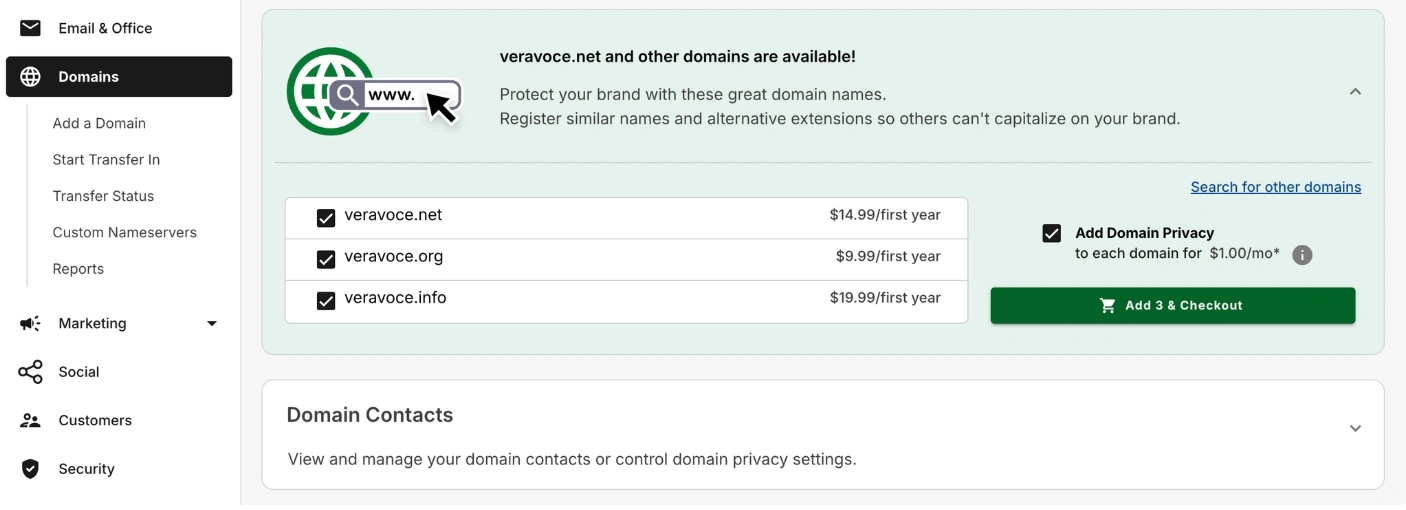
Expand Domain Contacts
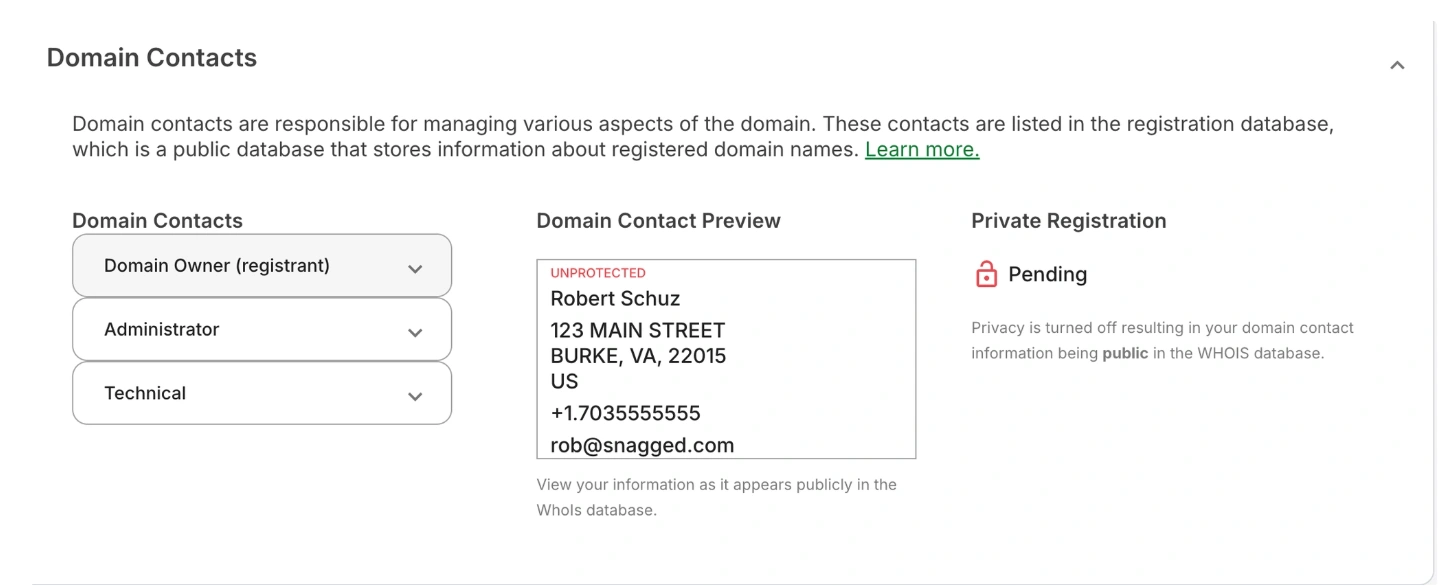
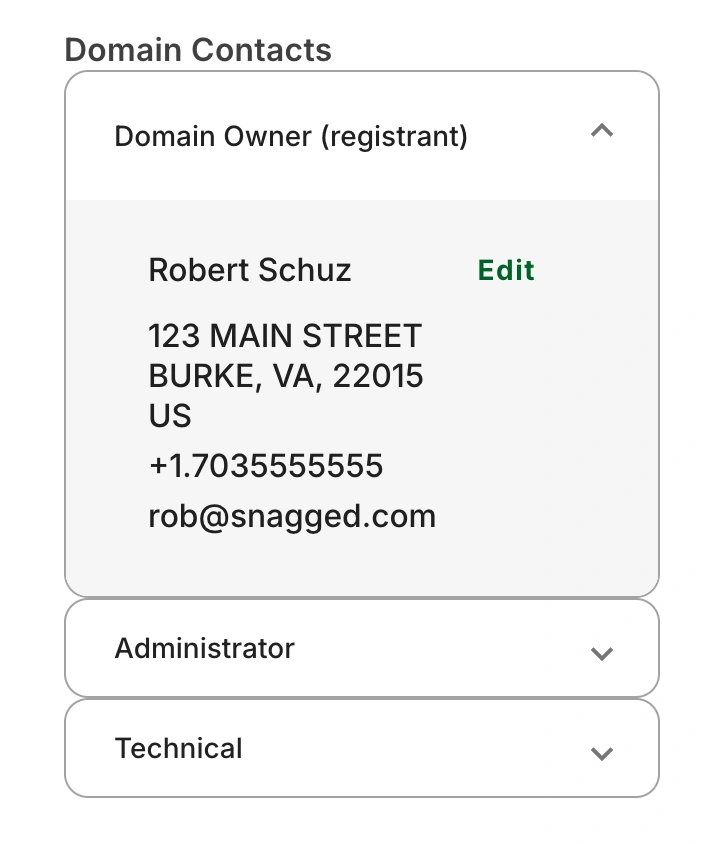
4. Check registrant contact information
Locate Domain Owner (Registrant) Info then click “Edit”
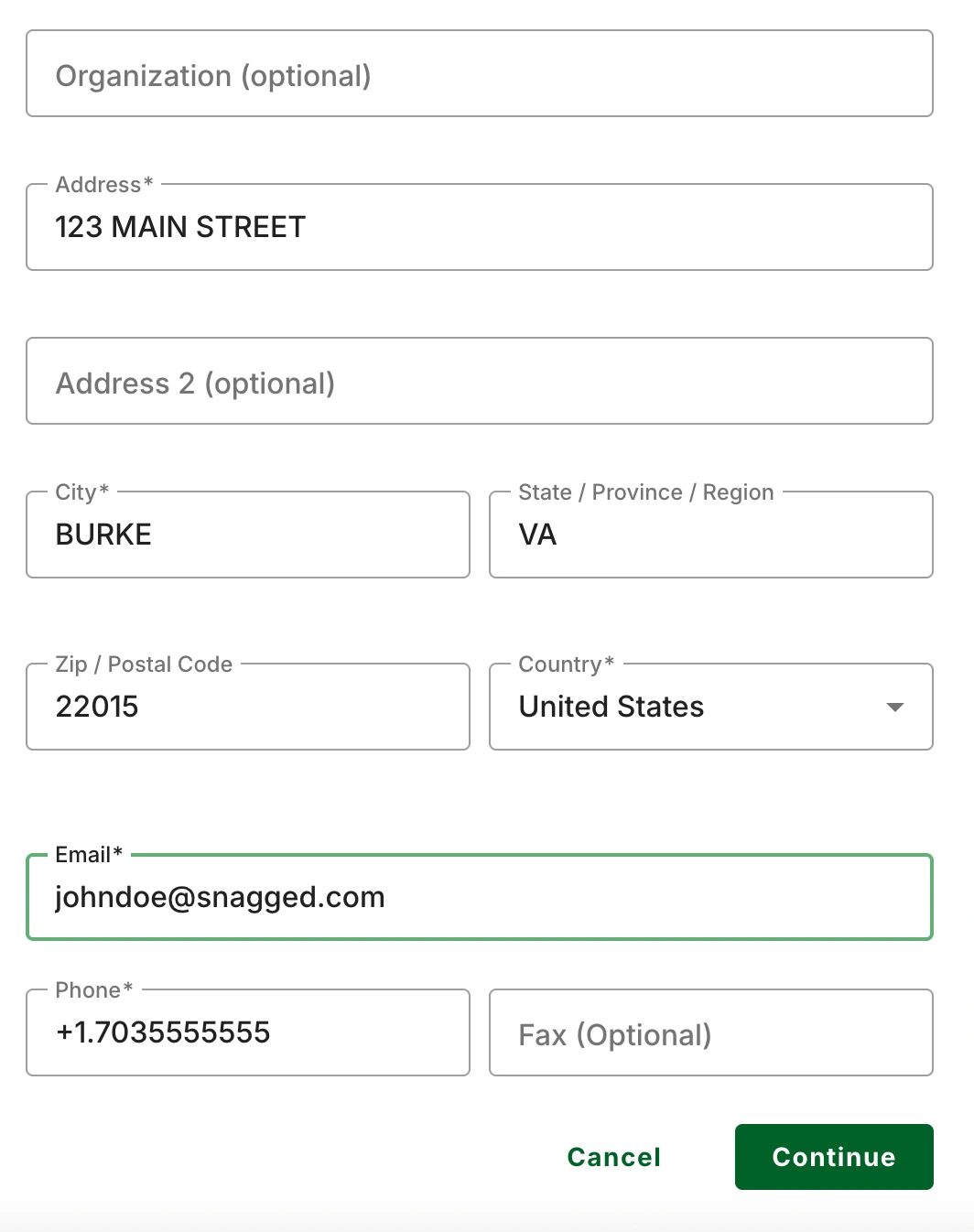
5. Confirm the Registrant Email Address
Enter the correct registrant email address then click “Continue”
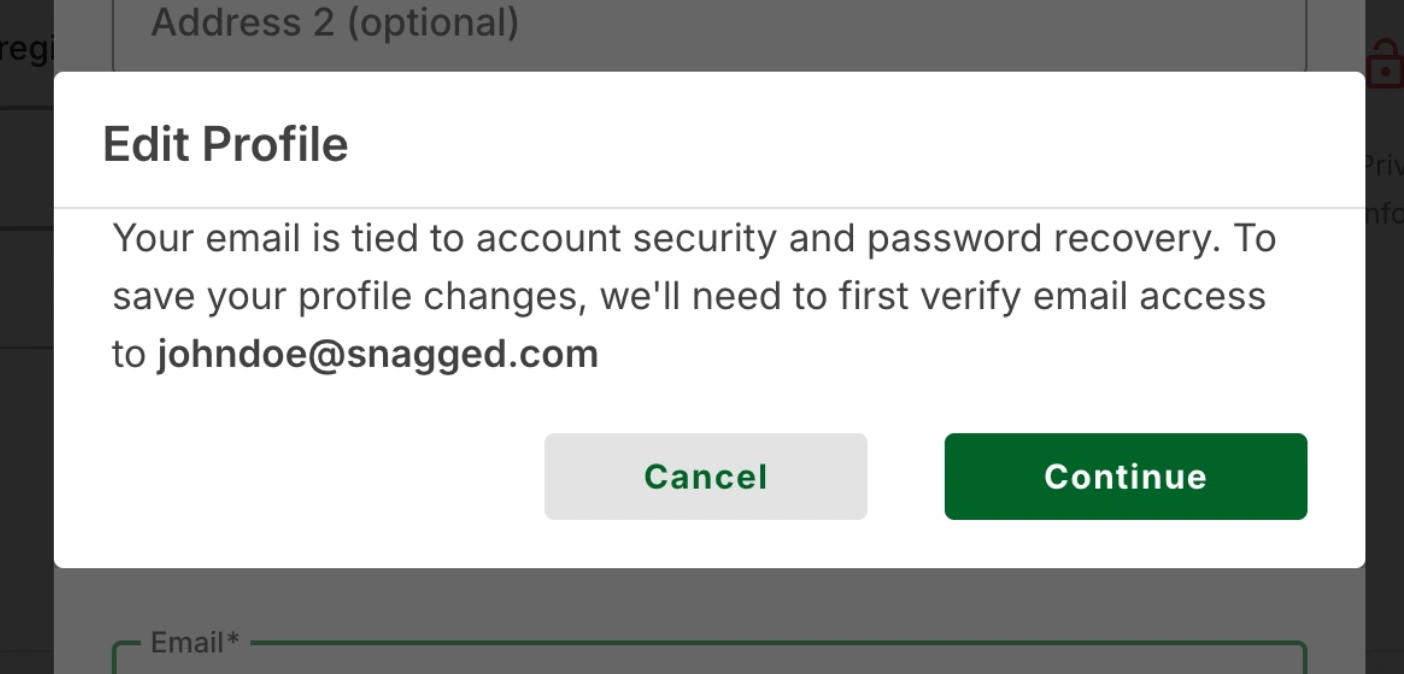
A new pop-up will show up on your screen prompting you to verify your email address. Click “Continue”
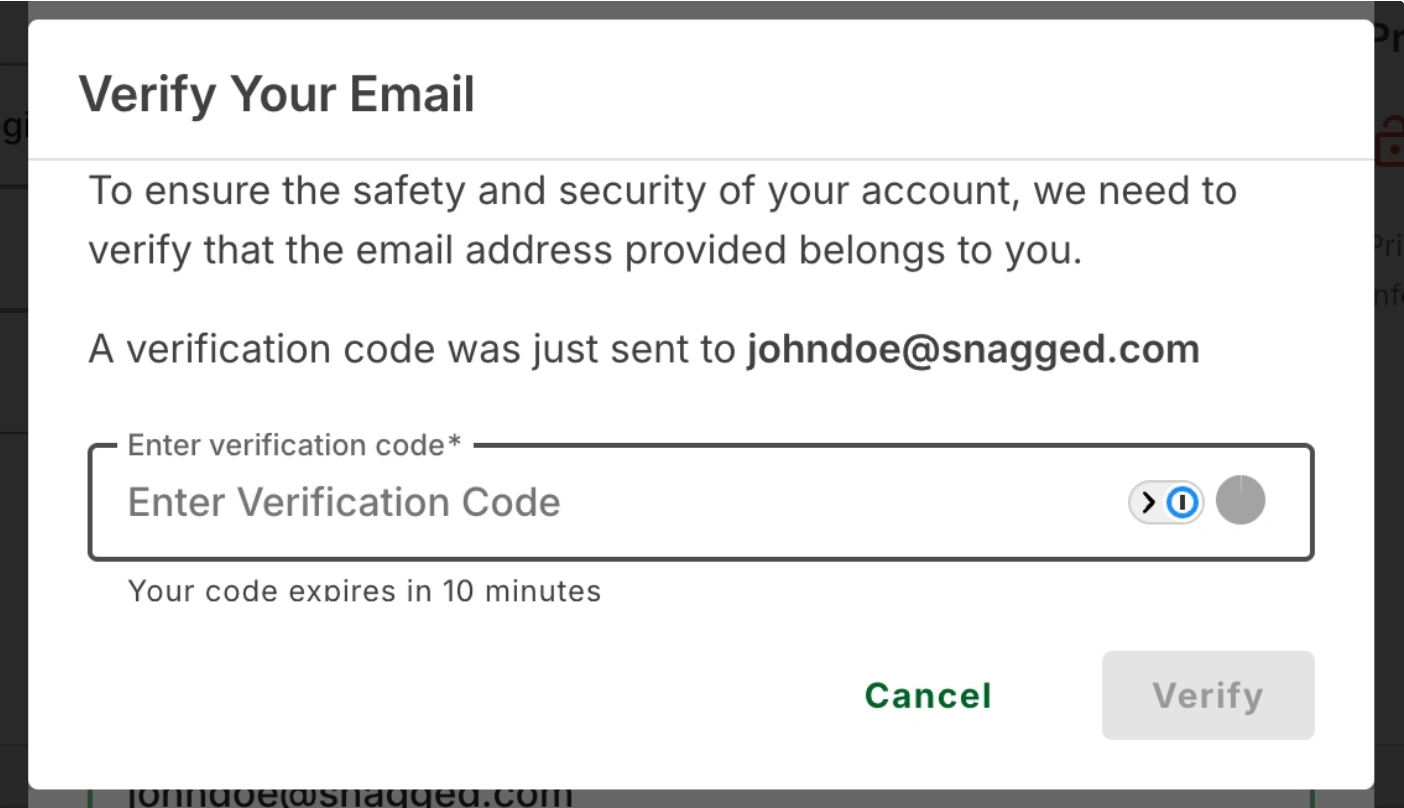
A verification code will then be sent to your email that should be entered in the box below
6. Confirmation
Once the email is confirmed, the domain contact information will be verified and the domain will remain active.
Common Issues
- Verification email not received
- Check your spam or junk folder
- Confirm the registrant email address is correct in your domain contact settings
- Domain suspended due to verification failure
- ICANN requires registrant email verification
- If verification is not completed within the required timeframe, the domain may be temporarily suspended until verified
We regularly review and update our guides to keep them accurate. If something looks off, email guides@snagged.com and we’ll fix it.