How to renew a domain name on GoDaddy

Steps to renew a domain on GoDaddy
1. Log in to your GoDaddy account
Log into to your GoDaddy Account
Go to Profile located at the top right corner of your screen
Click “My Products” to access domain portfolio once the dropdown menu appears
2. Open your domain settings
Find the domain you want to renew
Click on “Domain” on the menu located at the far left of your screen
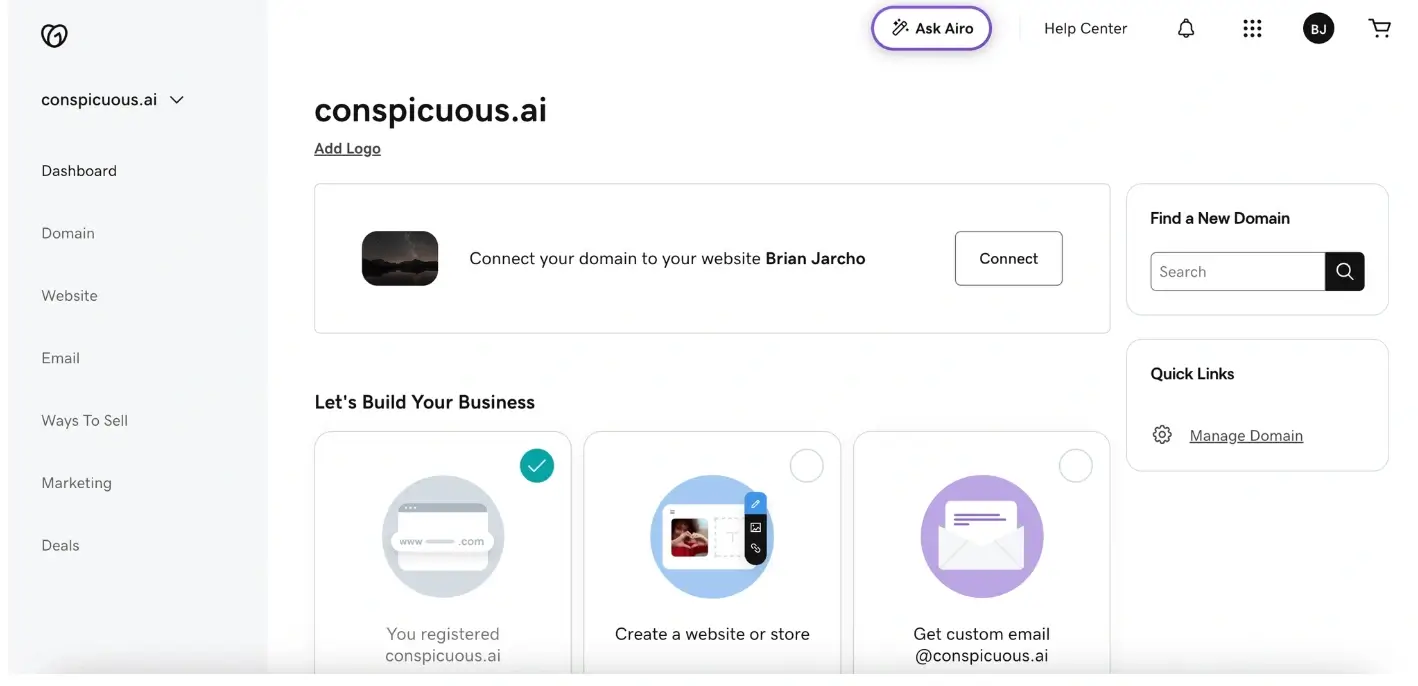
Now click on “Overview” on the menu at the top
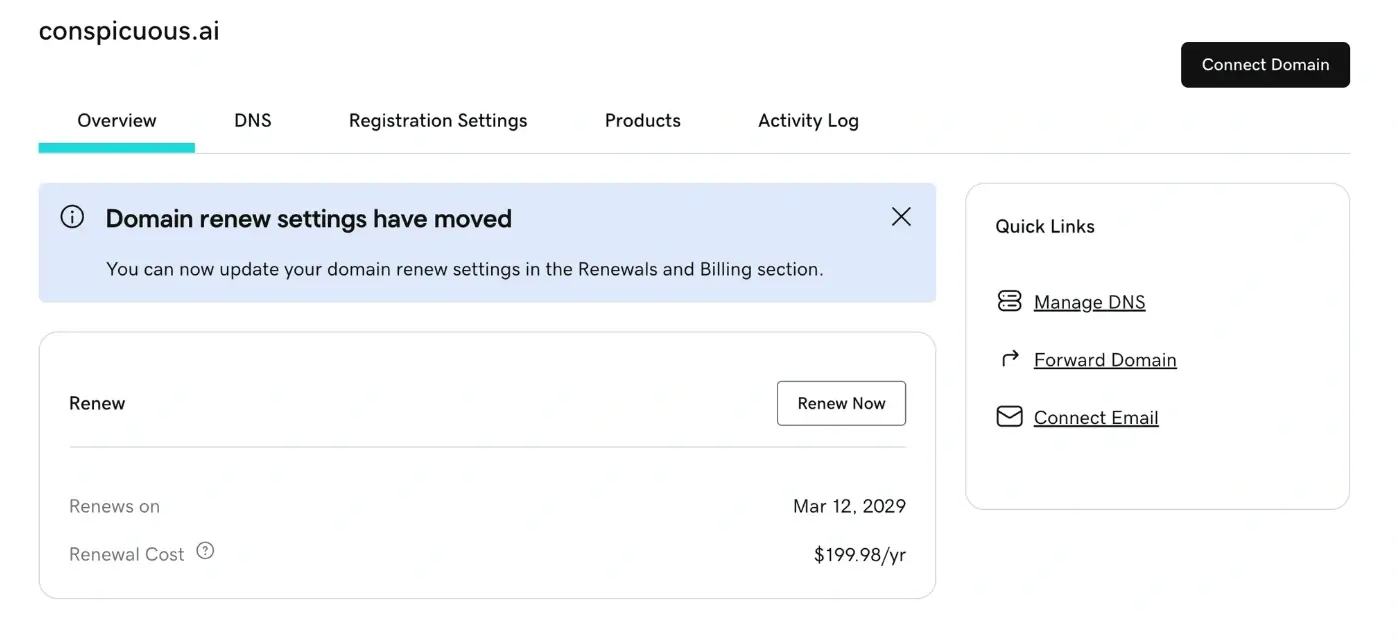
3. Choose renewal options
Click the “Renew Now” box
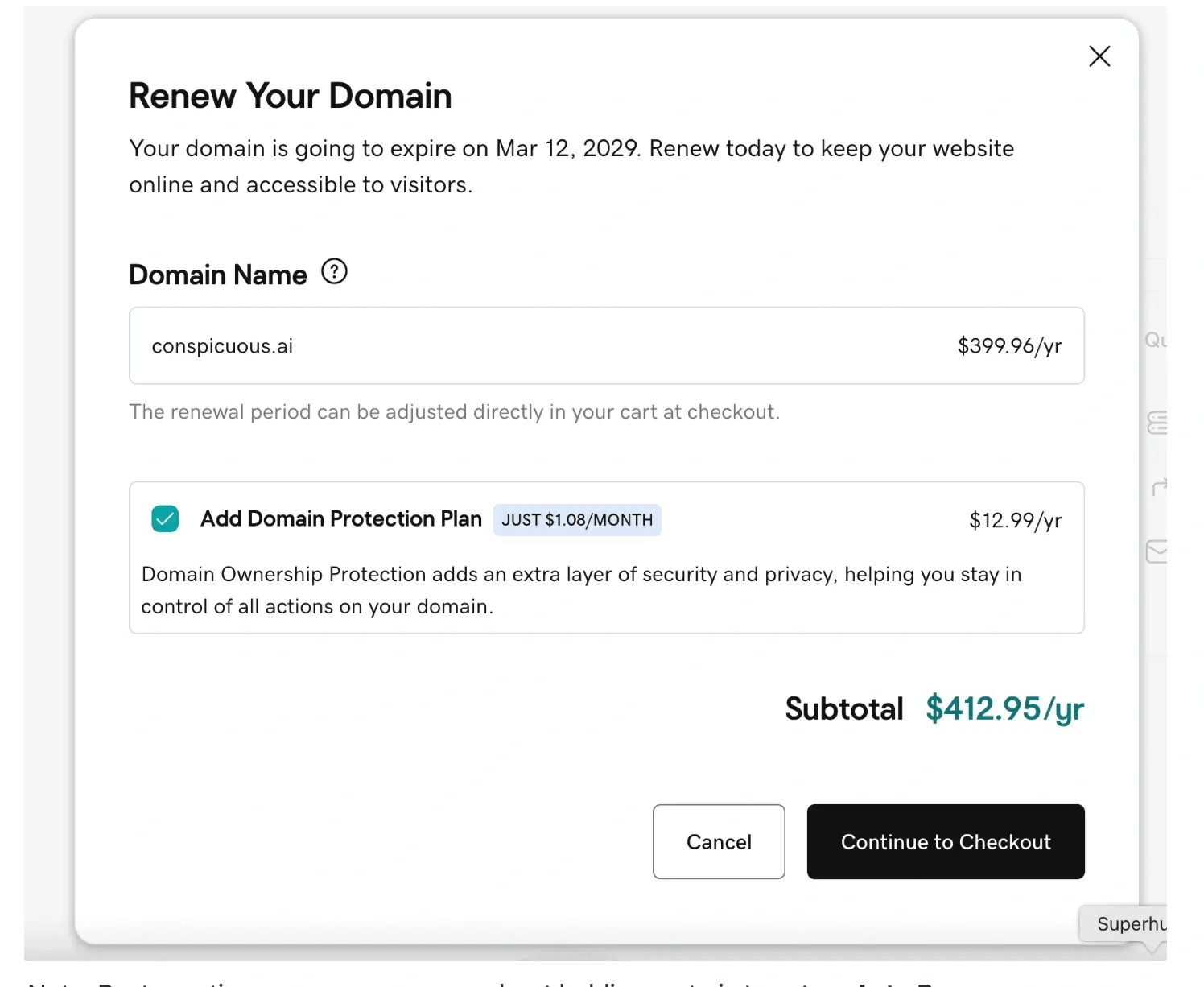
A pop-up will appear showcasing the total amount then click “Continue to Checkout”
Note: Best practice on names you care about holding on to is to set up Auto Renew
This is how you do that:
Click on your profile icon once logged in
Go to “Renewals & Billings
.webp)
Go to the domain you want to Auto-Renew
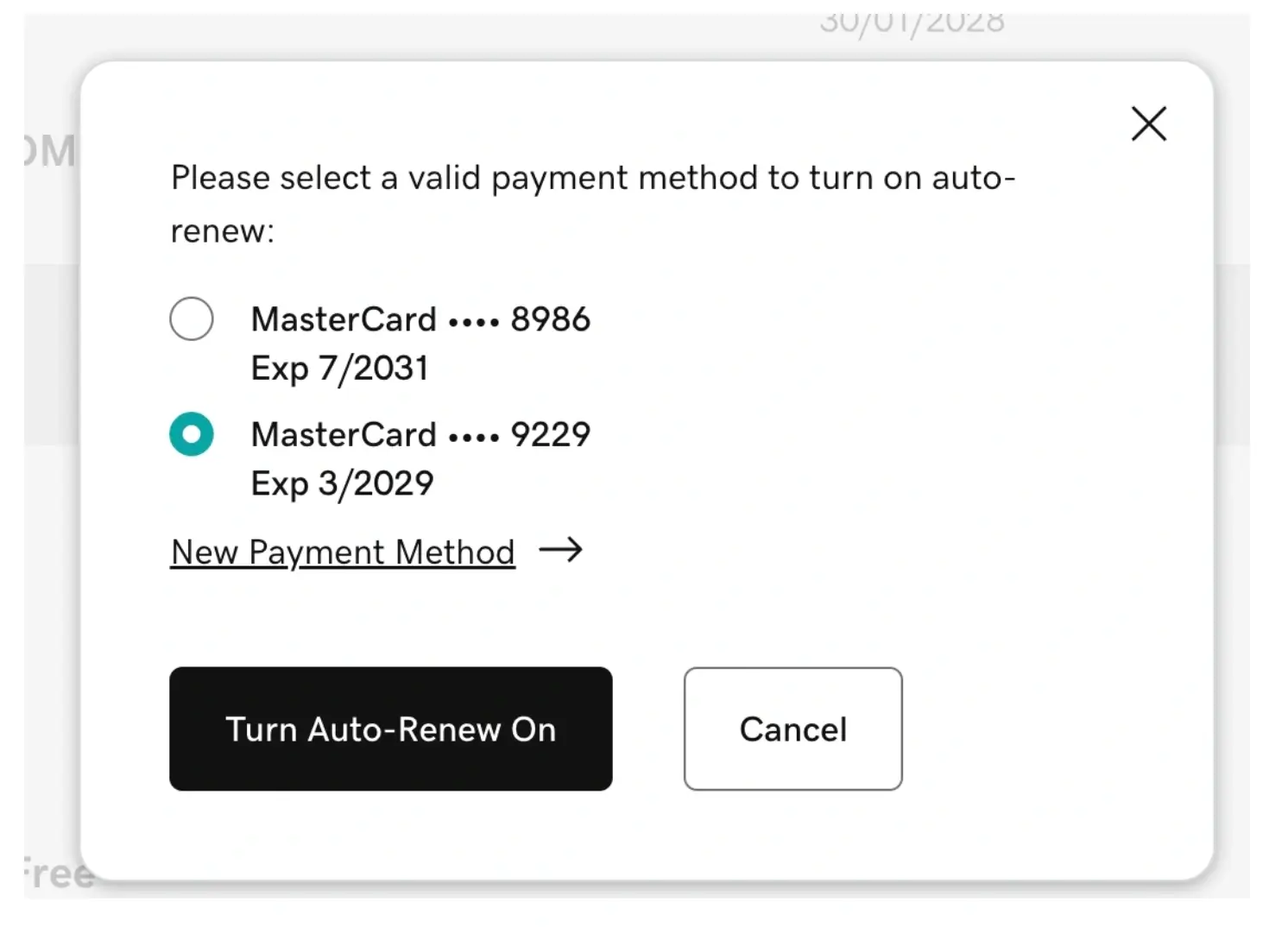
Click the three-dot icon on the far right, then select “Turn on Auto-Renew” from the dropdown menu that appears.
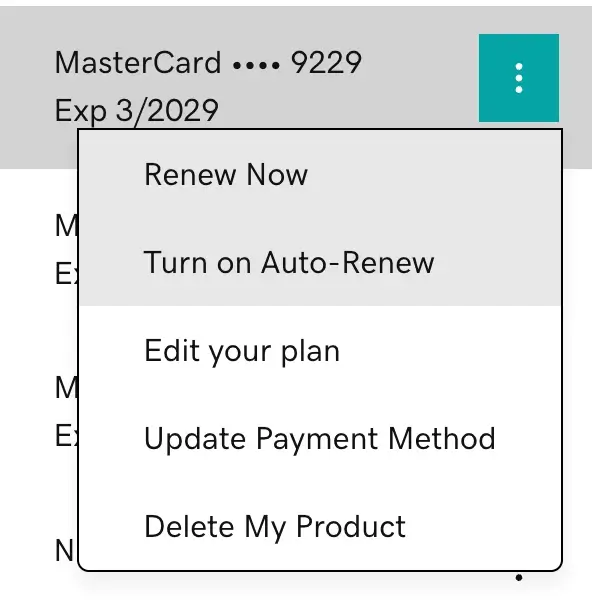
Select the Credit Card you want to be automatically charged for domain renewals or enter the Credit Card details if they aren’t available and click “Turn Auto-Renew On” again.
What Happens Next
Wait for confirmation that your domain has been successfully renewed
Check the updated expiration date in your domain settings
We regularly review and update our guides to keep them accurate. If something looks off, email guides@snagged.com and we’ll fix it.