How to enable domain privacy on Network Solutions
Quick Answer
To enable domain privacy on Network Solutions, log in to your account, open My Domain Names, select your domain, and turn on Private Registration or WHOIS Privacy in the domain settings. This hides your personal contact information from the public WHOIS database.
Steps to Enable Domain Privacy on Network Solutions
1. Log in to your Network Solutions account
Go to your Network Solutions Account
Enter your ‘Username’ and ‘Password’
2. Open your domain settings
Go to your domain list
Find the domain you’re looking for and click Settings

3. Locate privacy settings
Click “Turn On” at the bottom left under “Domain Overview”
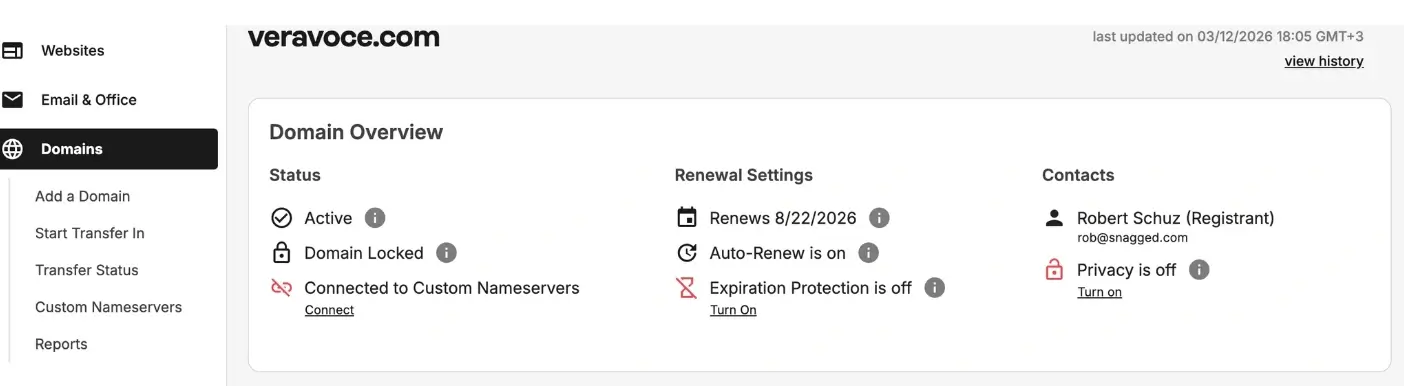
You will be redirected to a page that prompts you to complete payment
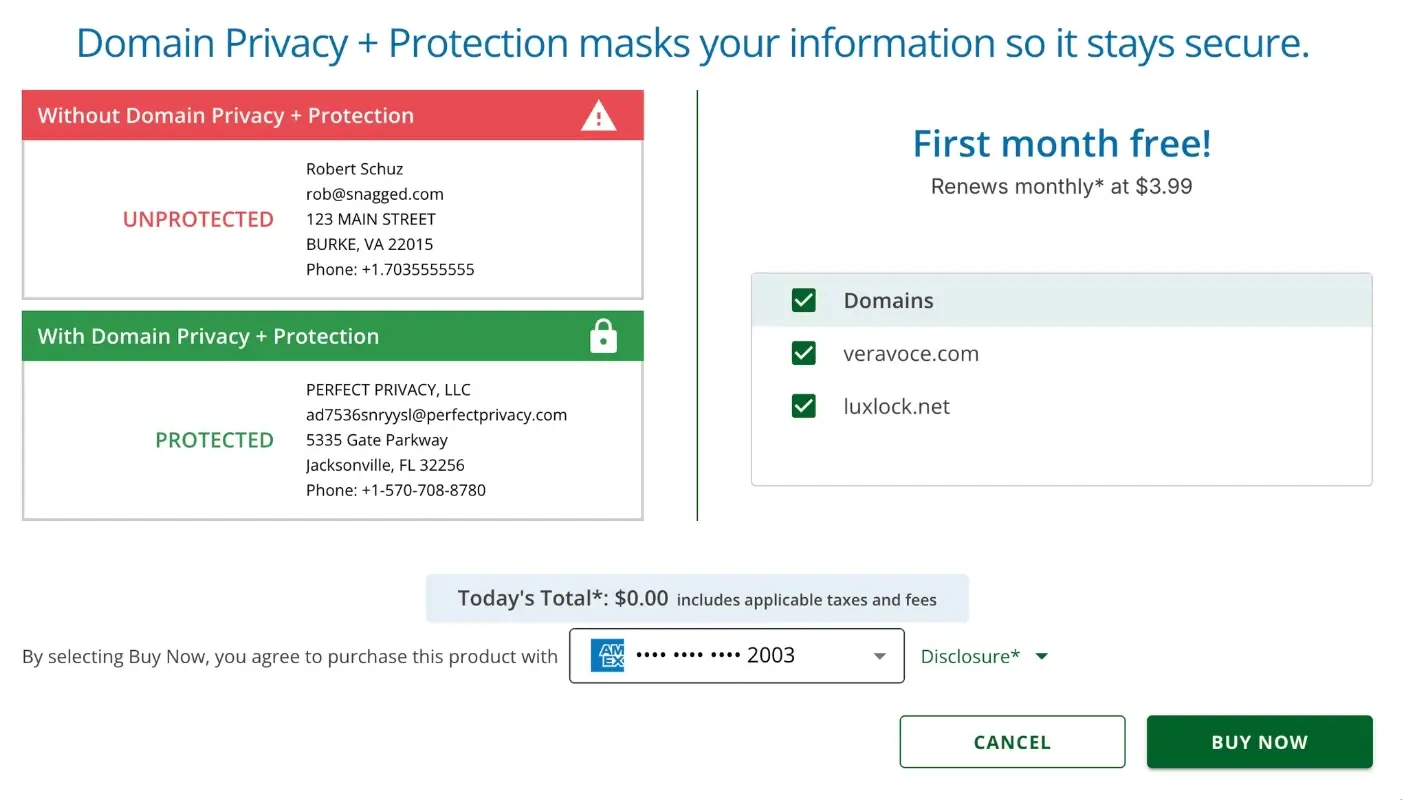
Review the privacy protection details
What Happens Next
Once enabled, your personal information such as name, email, phone number, and address will be replaced in the public WHOIS database with proxy contact information.
Does Network Solution Charge for Privacy?
Yes, Network Solutions charges for domain privacy. Many other registrars include this for free, but on Network Solutions this is a paid monthly service.
Common Issues
- Privacy option not available
- Some domain extensions do not support WHOIS privacy
- Check if the domain type allows privacy protection
- Personal information still visible
- WHOIS updates may take several hours to refresh across lookup services
We regularly review and update our guides to keep them accurate. If something looks off, email guides@snagged.com and we’ll fix it.