How to enable domain privacy on GoDaddy

Quick Answer
To enable domain privacy on GoDaddy, log in to your account, open your Domain Portfolio, select your domain, and turn on Domain Privacy or WHOIS Privacy. This hides your personal contact information from the public WHOIS database.
Steps to Enable Domain Privacy on GoDaddy
1. Log in to your GoDaddy account
Log into to your GoDaddy Account
Go to Profile located at the top right corner of your screen
Click “My Products” to access domain portfolio once the dropdown menu appears
2. Open your domain settings
Find the domain you want to manage
Click on “Domain” on the menu located at the far left of your screen
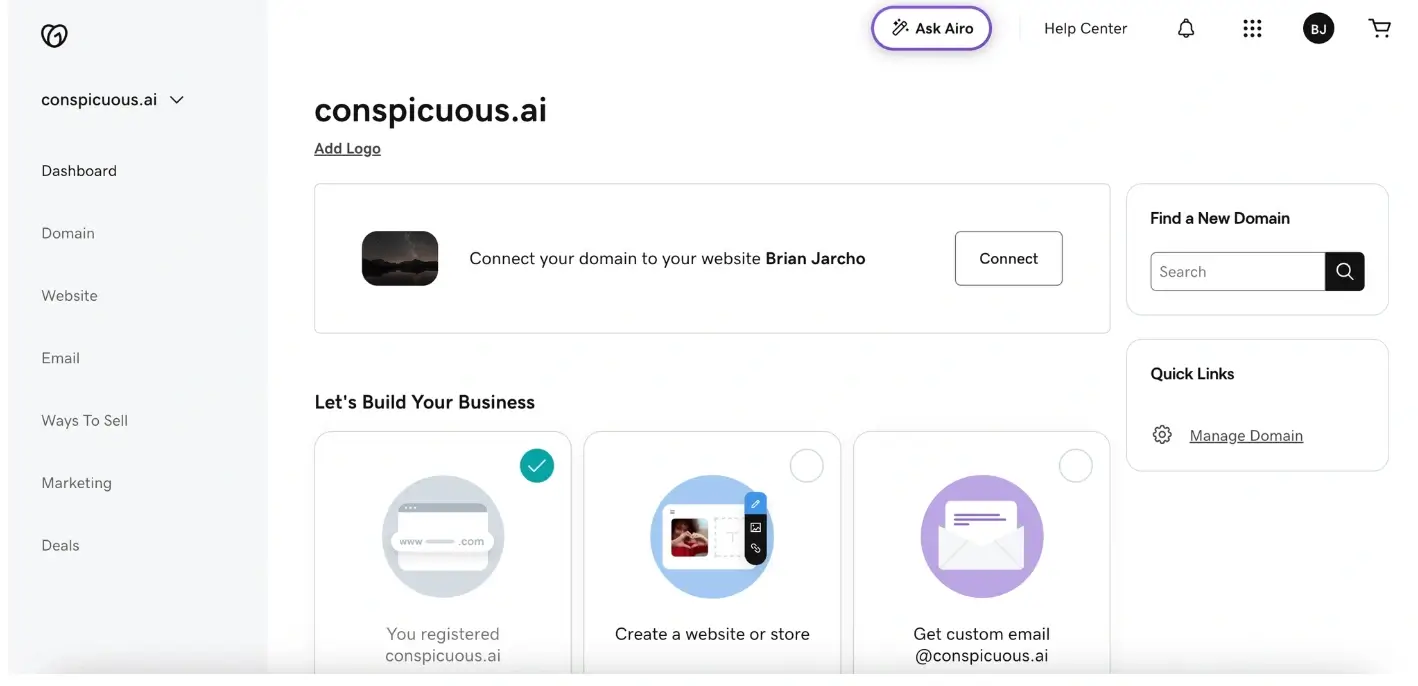
Now click on “Registration Settings” on the menu at the top
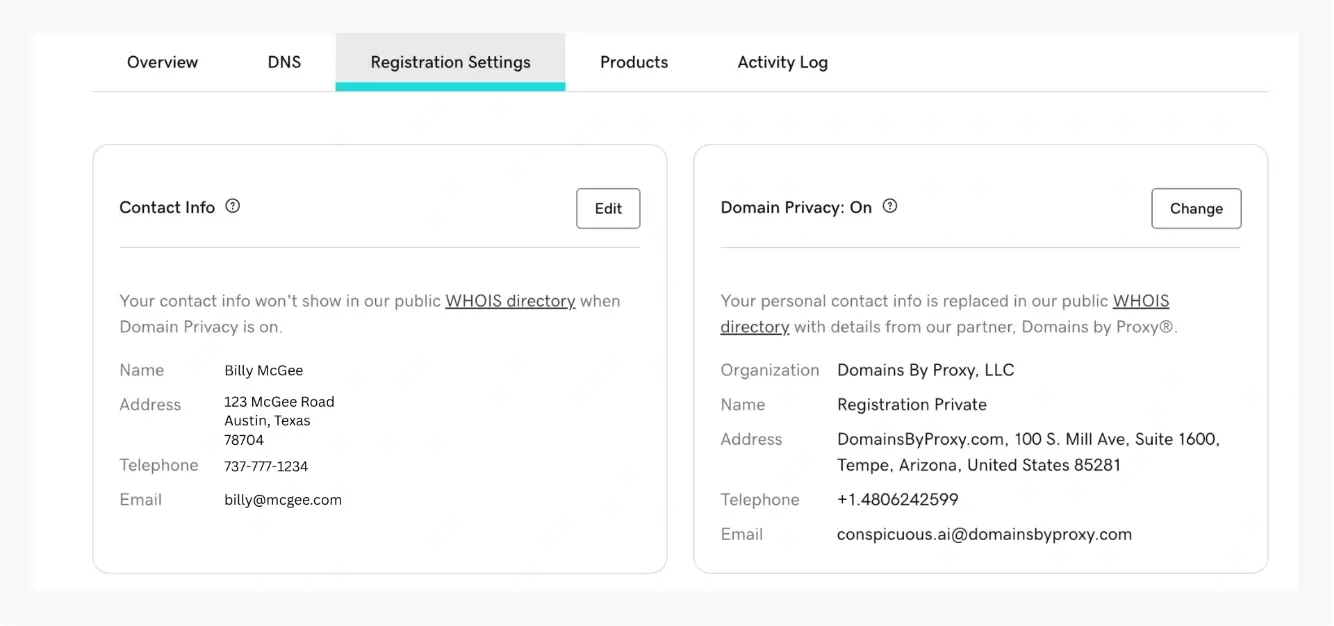
3. Locate privacy settings
Click Change under “Domain Privacy”
A pop-up will appear prompting you to select “On”
4. Save your changes
Click Save for changes to be effected
What Happens Next
Your personal contact details such as name, email, phone number, and address will be replaced in the public WHOIS database with proxy information.
Common Issues
- Privacy option not available
- Some domain extensions do not support WHOIS privacy
- Information still visible in WHOIS
- Updates may take several hours to reflect across lookup services
We regularly review and update our guides to keep them accurate. If something looks off, email guides@snagged.com and we’ll fix it.