How to change nameservers on Namecheap

Quick Answer
To change nameservers on Namecheap, log in to your account, go to Domain List, select your domain, and update the Nameservers setting. Changes typically take 24–48 hours to propagate.
Steps to Change Nameservers on Namecheap
1. Log in to your Namecheap account
Go to your Namecheap Acc
Click Sign In
Access your dashboard
2. Open your domain list
Click Domain List
Find the domain you want to manage
Click Manage at the far right of the domain

3. Locate nameserver settings
Scroll down to Nameservers under “Domain” on the menu at the top of the screen
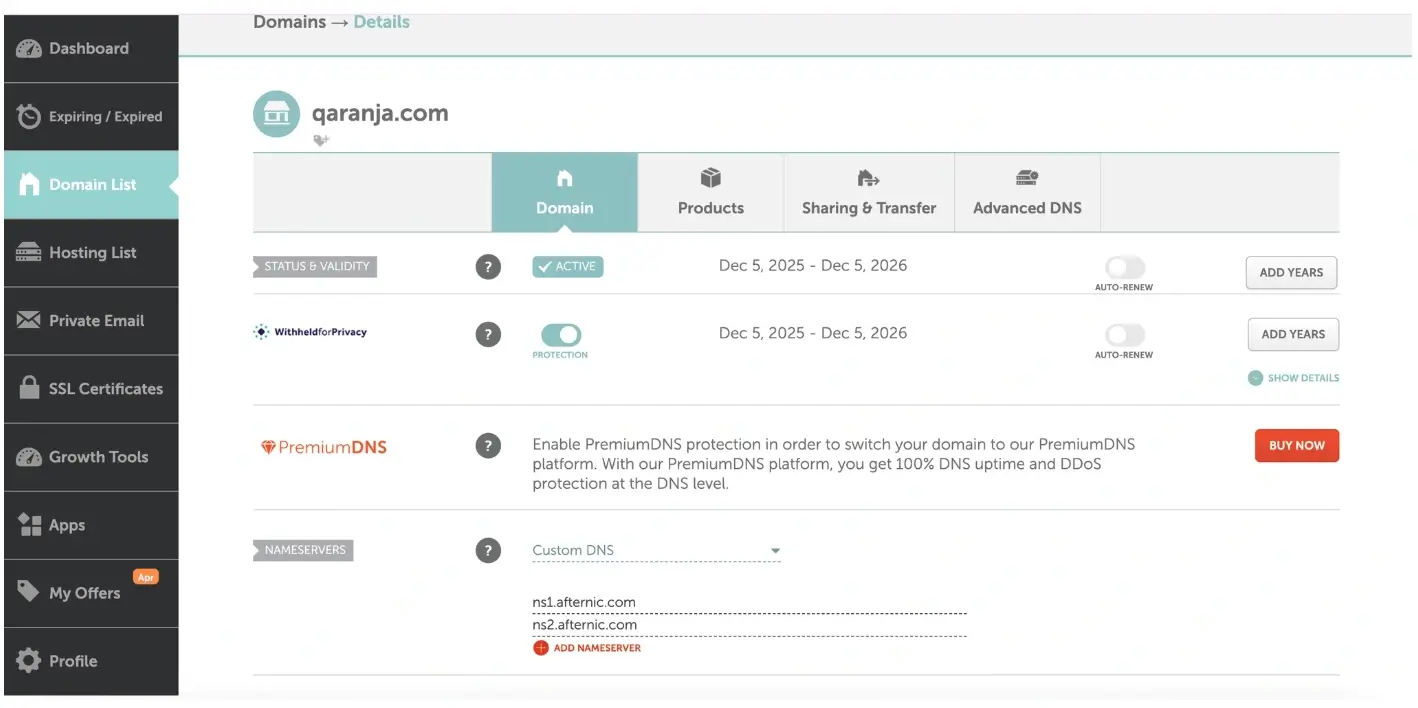
4. Choose nameserver type
Select Custom DNS on the dropdown menu

5. Enter the new nameservers
Input your new nameserversExample:
ns1.example.comns2.example.com

6. Save your changes
Click the checkmark at the top right to save the changes
What Happens Next
Nameserver updates usually take 24–48 hours to fully propagate
Your website or email may temporarily resolve to old settings during this time
Common Issues
- Nameservers not updating
- Double-check for typos in the nameserver values
- Wait for full DNS propagation
- Cannot change nameservers
- Ensure the domain is active
- Unlock the domain if required
We regularly review and update our guides to keep them accurate. If something looks off, email guides@snagged.com and we’ll fix it.