How to change domain contact information on Namecheap

Quick Answer
To change domain contact information on Namecheap, log in to your account, go to Domain List, select your domain, and update the Registrant, Administrative, Technical, or Billing contact details. Changing registrant information may trigger a 60-day transfer lock due to ICANN rules.
Steps to Change Domain Contact Information on Namecheap
1. Log in to your Namecheap account
Go to your Namecheap Acc
Click Sign In
Access your dashboard
2. Open your domain list
Click Domain List
Find the domain you want to manage
Click Manage at the far right of the domain

3. Open contact settings
Scroll down to Domain Contacts under “Domain” on the menu at the top of your screen
Click Edit Contacts
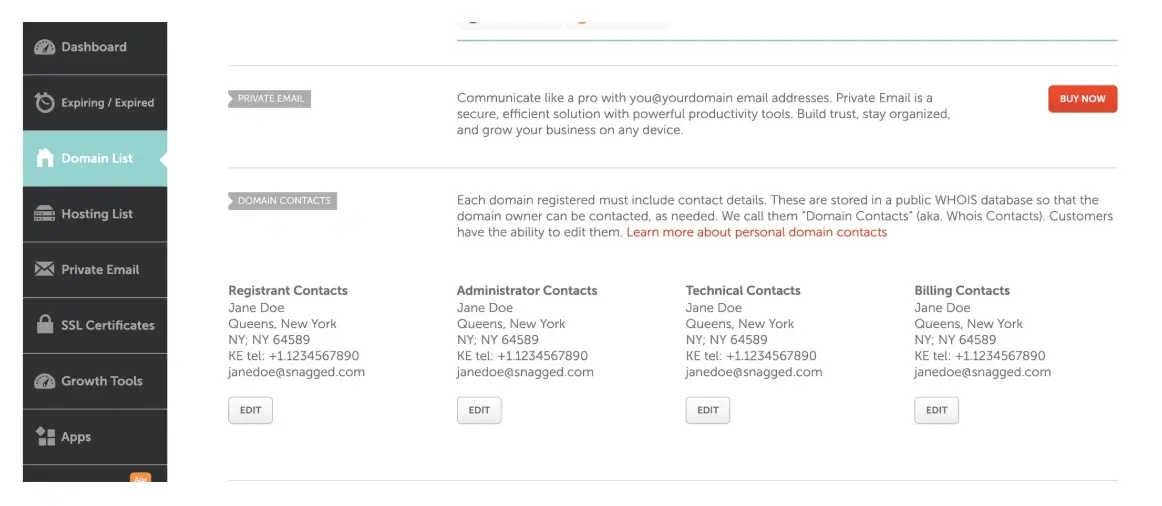
4. Choose the contact type to update
You can update:
Registrant contact
Administrative contact
Technical contact
Billing contact
5. Update the contact details
Edit fields such as:
Name
Organization
Email address
Phone number
Address
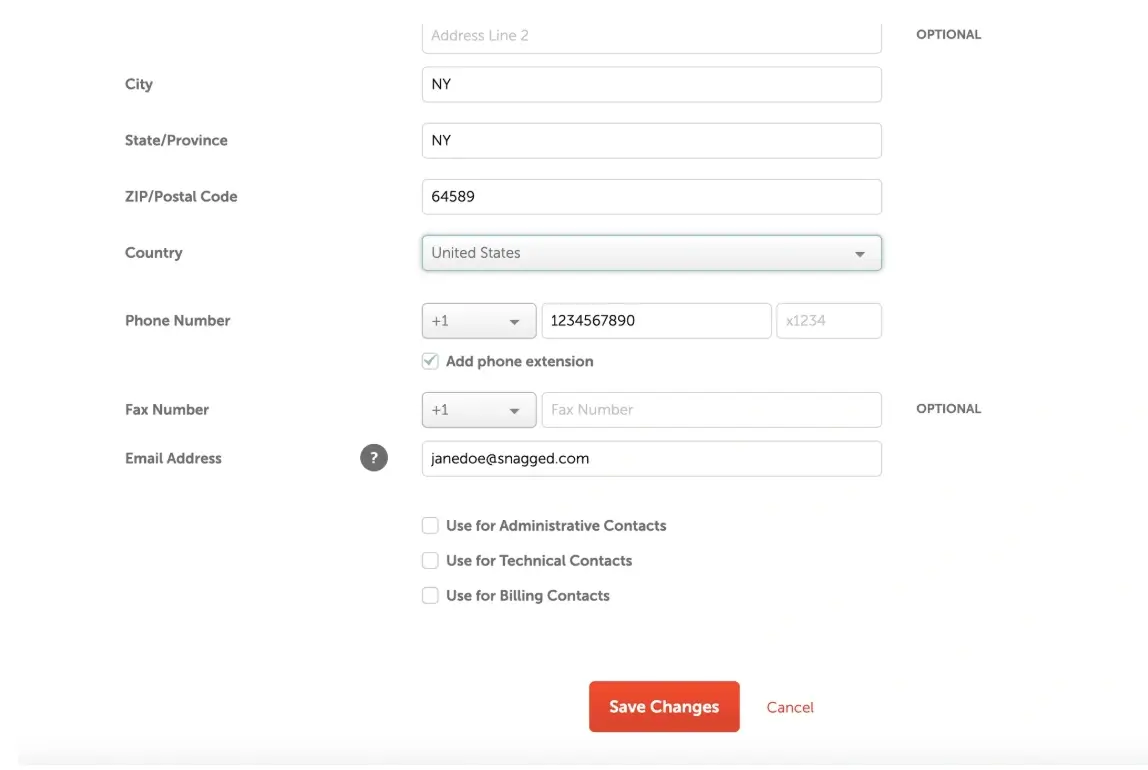
6. Save your changes
Click Save Changes
Verify with a link sent to your email if prompted
Important: 60-Day Transfer Lock
If you change the registrant name, organization, or email address, ICANN rules may apply a 60-day transfer lock.
During this period, the domain cannot be transferred to another registrar.
Common Issues
- Transfer blocked after updating contact information
- This is expected after changing registrant details
- The lock typically lasts 60 days
- Changes not reflected in WHOIS
- WHOIS updates may take several hours to appear across lookup services
We regularly review and update our guides to keep them accurate. If something looks off, email guides@snagged.com and we’ll fix it.