How to change DNS records on Namecheap

Quick Answer
To change DNS records on Namecheap, log in to your account, go to Domain List, select your domain, and open Advanced DNS. From there you can add, edit, or delete records such as A, CNAME, MX, or TXT.
Steps to Change DNS Records on Namecheap
1. Log in to your Namecheap account
Go to your Namecheap Acc
Click Sign In
Access your dashboard
2. Open your domain list
Click Domain List
Find the domain you want to manage
Click Manage at the far right of the domain

3. Open Advanced DNS
Click the Advanced DNS tab on the menu at the top of your screen
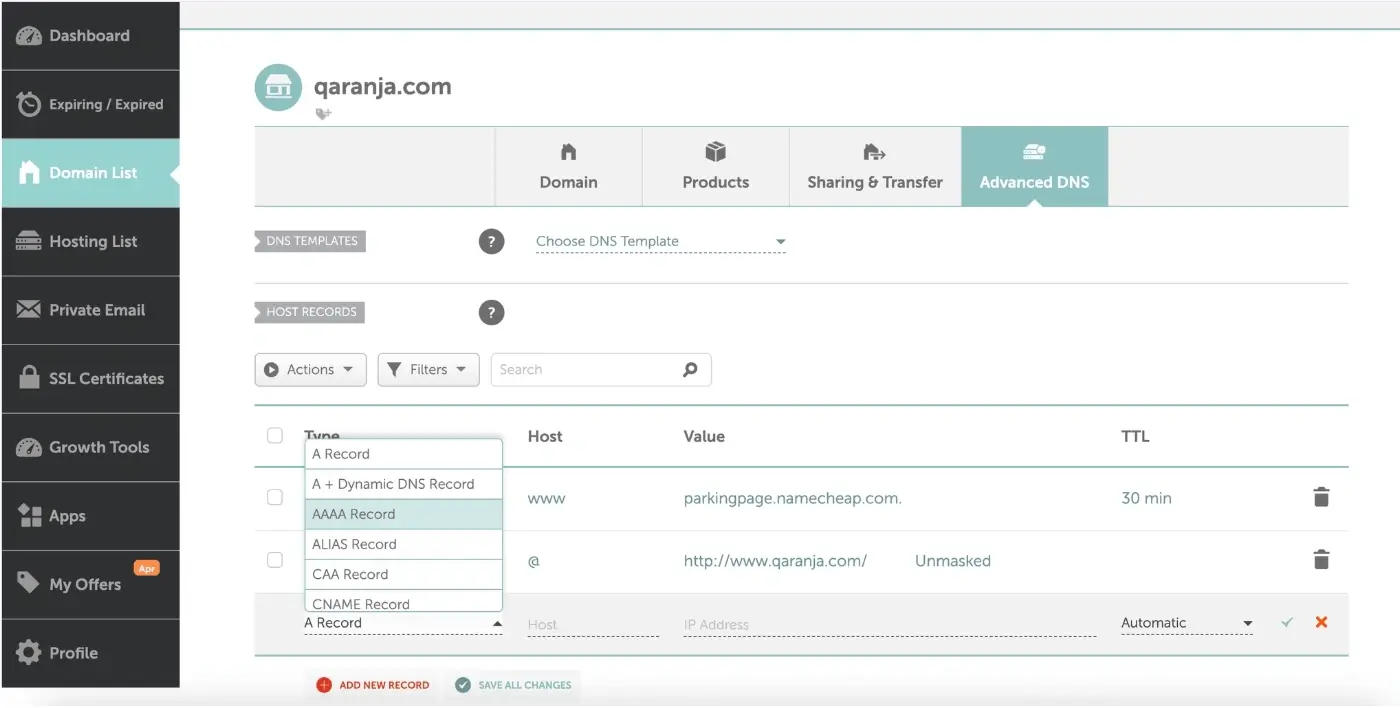
4. Locate the record you want to change
Common record types include:
A record: points a domain to an IP address
CNAME record: points a subdomain to another domain
MX record: controls email routing
TXT record: used for verification and security
5. Edit, add, or delete records
Click Edit to update an existing record
Click Add New Record at the bottom to create a new one
Delete records you no longer need if necessary
6. Save your changes
Click the checkmark icon to save changes
What Happens Next
DNS changes usually take effect within a few minutes, but may take up to 24 hours depending on DNS propagation.
Common Issues
- DNS changes not taking effect
- Wait for DNS propagation
- Clear your browser or DNS cache
- Unable to edit DNS records
- Ensure the domain is using Namecheap BasicDNS or PremiumDNS
- If custom nameservers are set, manage DNS at your DNS provider
We regularly review and update our guides to keep them accurate. If something looks off, email guides@snagged.com and we’ll fix it.