Hover
How to change DNS records on Hover

Quick Answer
To change DNS records on Hover, open your domain’s DNS settings, edit or delete the record, then save.
Steps to Change DNS Records on Hover
1. Log in to Hover
Go to your Hover account
Click Sign in
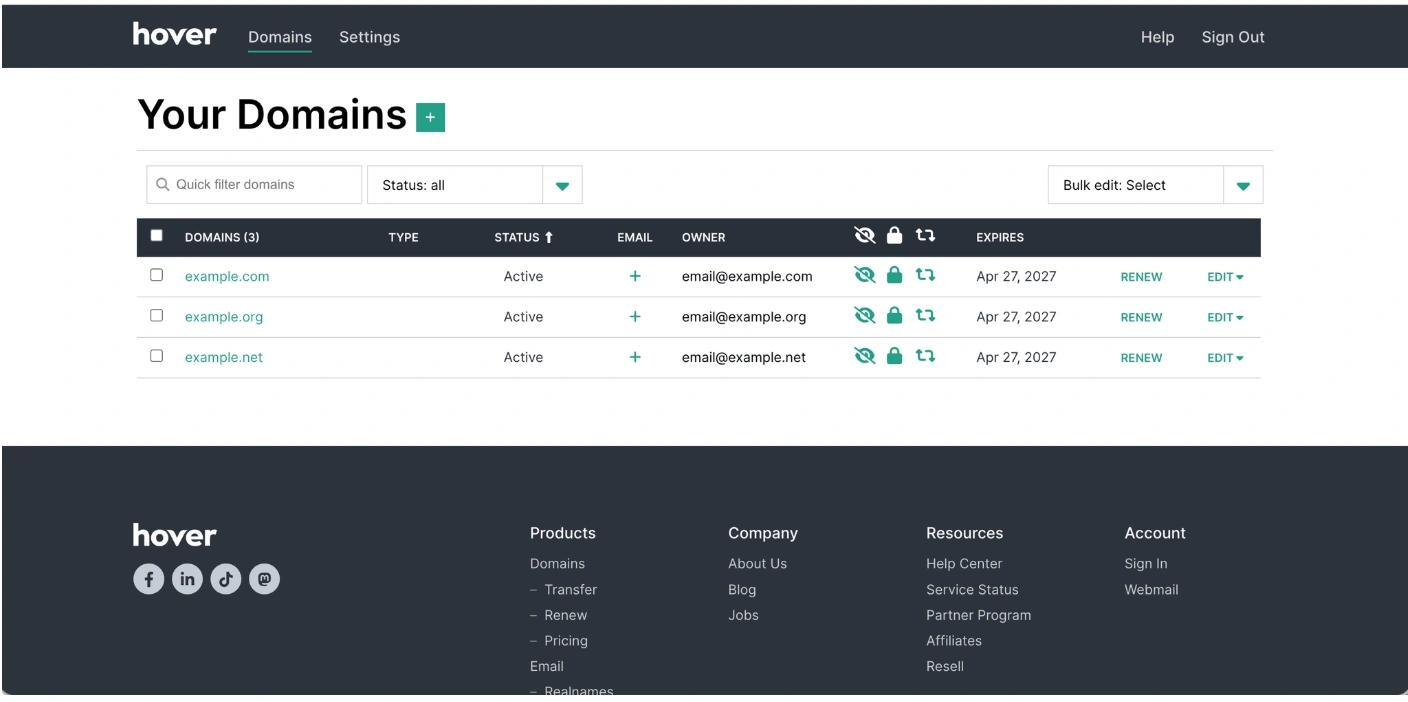
2. Open your domain
Select the domain you want to manage
3. Open DNS settings
Click DNS from the menu located at the top right of the screen
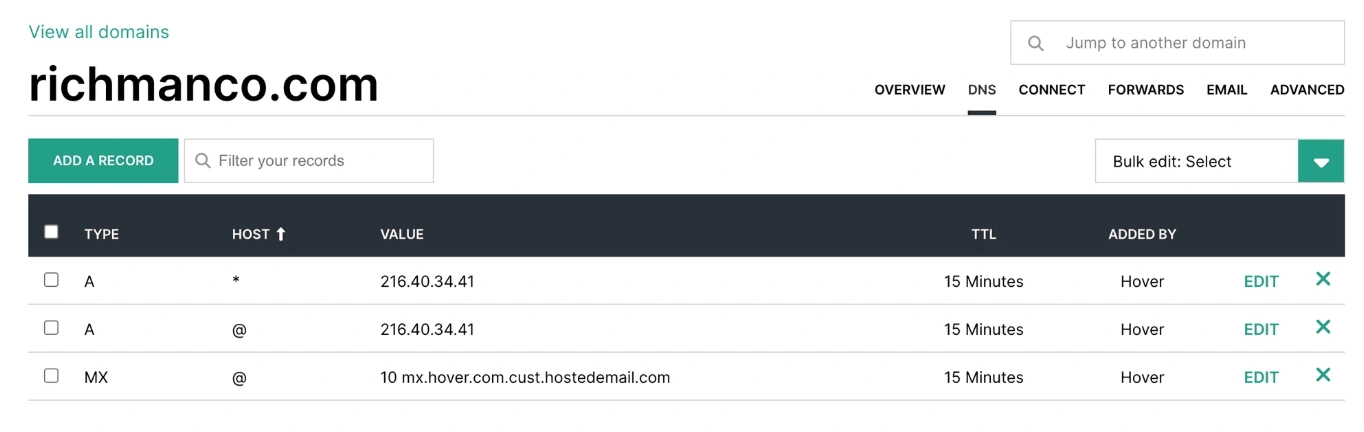
4. Find the record
Locate the record by type and host/name
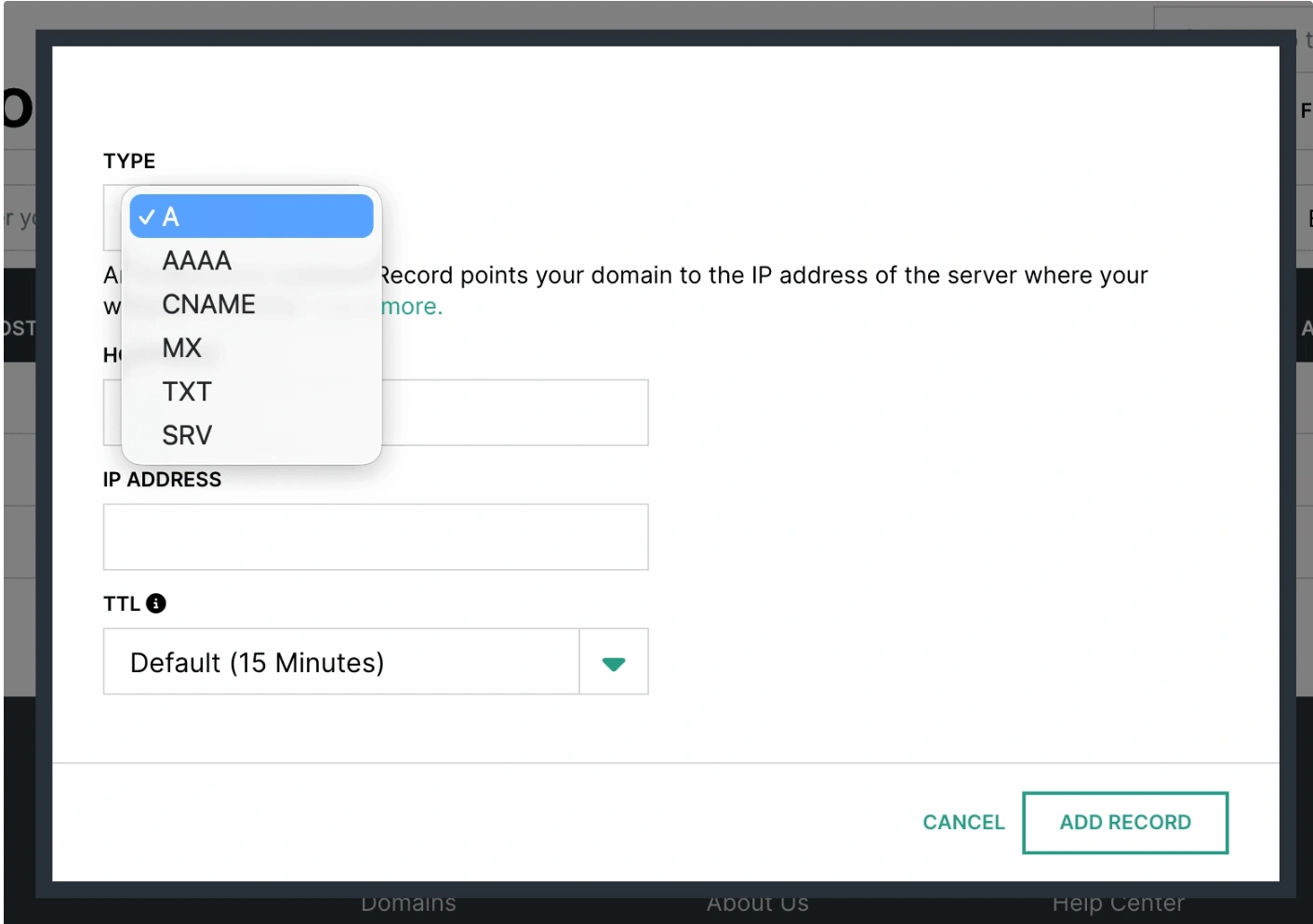
5. Edit or delete
Edit the value and save, or delete the record and confirm
Common Issues
- Conflicting records
- Remove conflicts for the same host (for example A and CNAME)
We regularly review and update our guides to keep them accurate. If something looks off, email guides@snagged.com and we’ll fix it.