How to add an MX record on Network Solutions

Quick Answer
To add an MX record on Network Solutions, log in to your account, open My Domain Names, select your domain, and go to DNS Settings or Advanced DNS. From there you can create a new MX record to route email for your domain.
Steps to Add an MX Record on Network Solutions
1. Log in to your Network Solutions account
Go to your Network Solutions Account
Enter your ‘Username’ and ‘Password’
2. Open your domain settings
Go to your domain list
Find the domain you’re looking for and click Settings

3. Locate DNS records settings
Scroll down to “Advanced Tools”
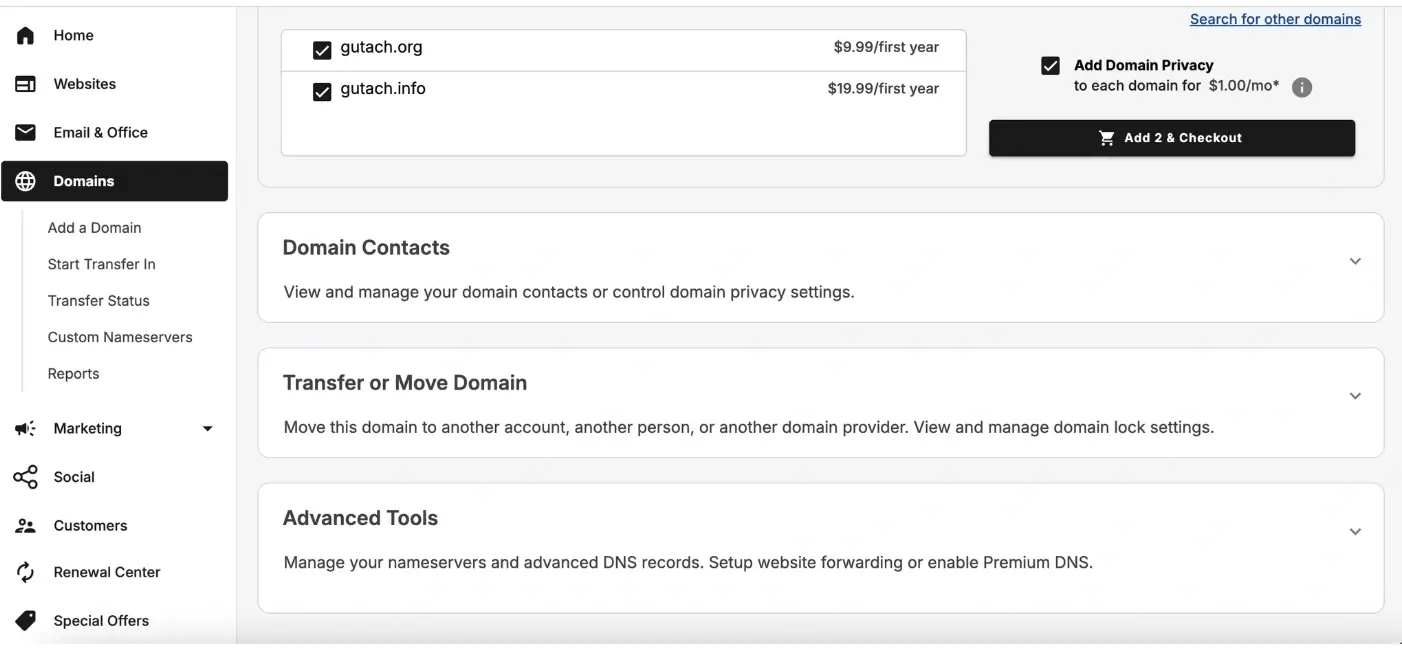
Expand Advanced tools and click “Manage” next to the Advanced DNS records
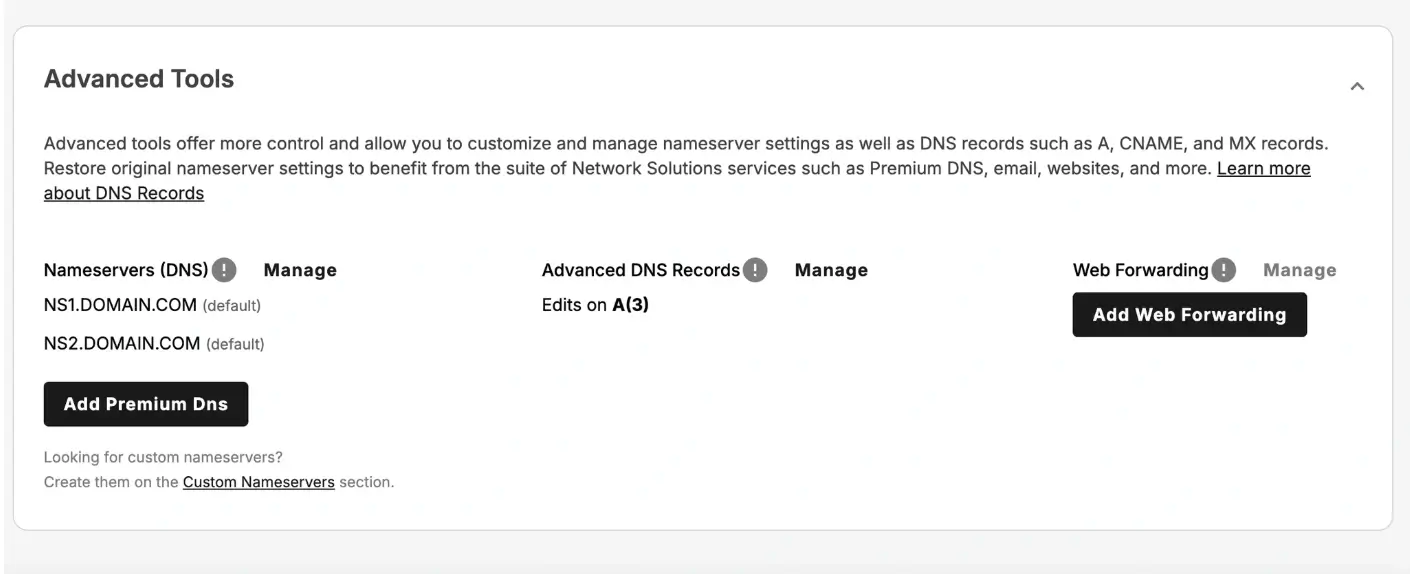
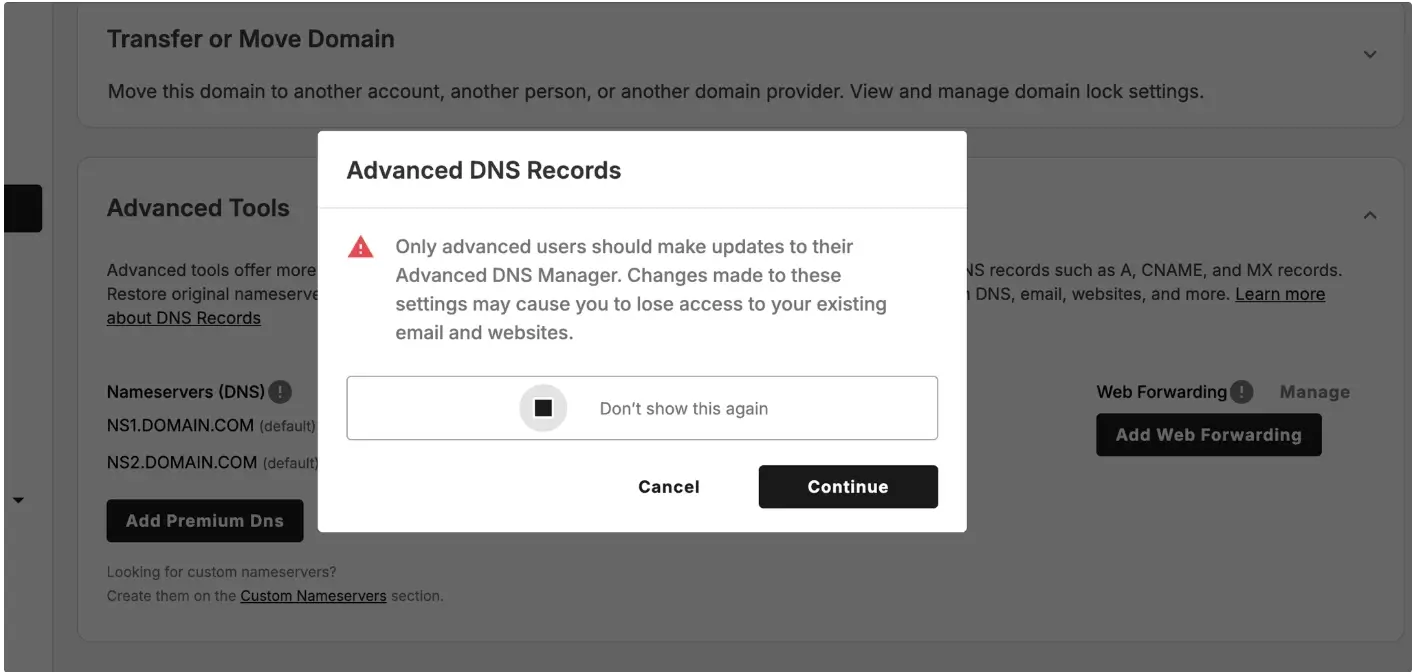
A pop-up will show on your screen then click “Continue”
4. Add a new DNS record
Click Add Record at the top right corner
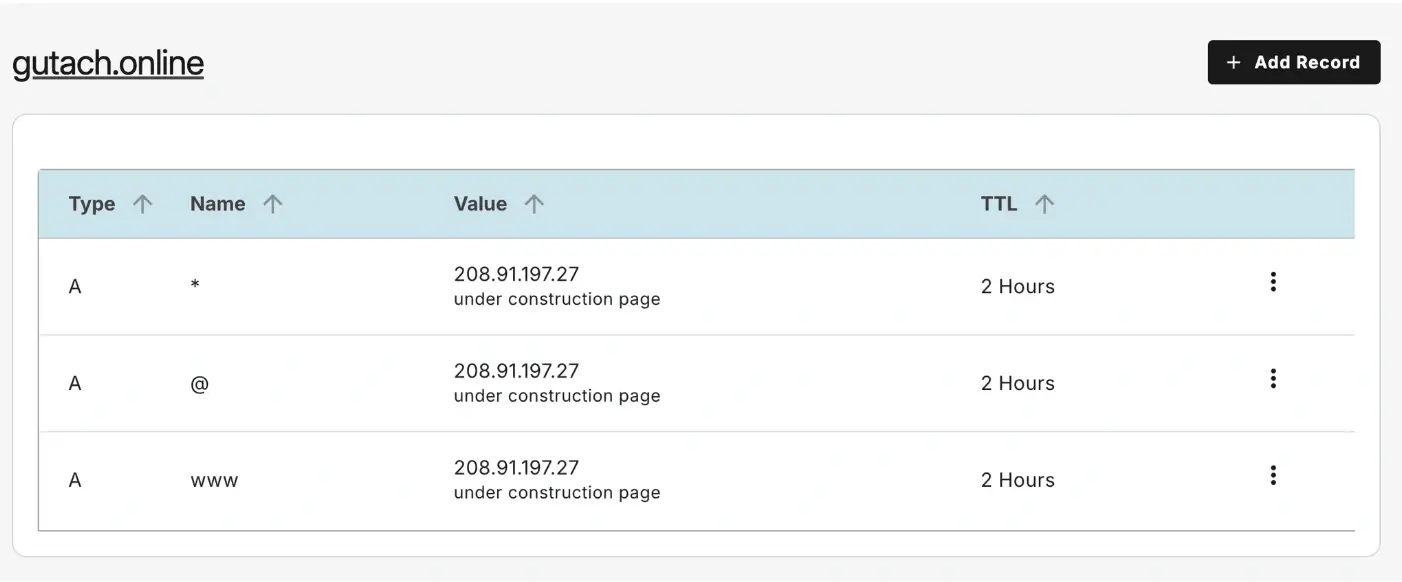
Select MX Record from the record type options
(It controls email routing)

5. Enter the MX record details
Fill in the required fields:
Refers to: usually @ for the root domain
Mail Server: the mail server address provided by your email provider
Priority: lower numbers have higher priority
TTL: leave the default which is 4 hours unless you need a custom value
6. Save the record
Click Add to save changes
What Happens Next
MX record updates usually propagate within a few minutes to 24 hours, depending on DNS caching and TTL settings.
Common Issues
- Subdomain not working
- Confirm the DNS record was saved correctly
- Check that the destination IP address or domain is correct
- Unable to add DNS records
- Make sure the domain is using Network Solutions nameservers
- If custom nameservers are set, DNS must be managed at that provider
We regularly review and update our guides to keep them accurate. If something looks off, email guides@snagged.com and we’ll fix it.