How to add a CNAME record on GoDaddy

Quick Answer
To add a CNAME record on GoDaddy, log in to your account, open your Domain Portfolio, select your domain, and go to DNS Management. Then add a CNAME record that points a subdomain to another domain name.
Steps to Add a CNAME Record on GoDaddy
1. Log in to your GoDaddy account
Log into to your GoDaddy Account
Go to Profile located at the top right corner of your screen
Click “My Products” to access domain portfolio once the dropdown menu appears
2. Open your domain settings
Find the domain you want to manage
Click on “Domain” on the menu located at the far left of your screen
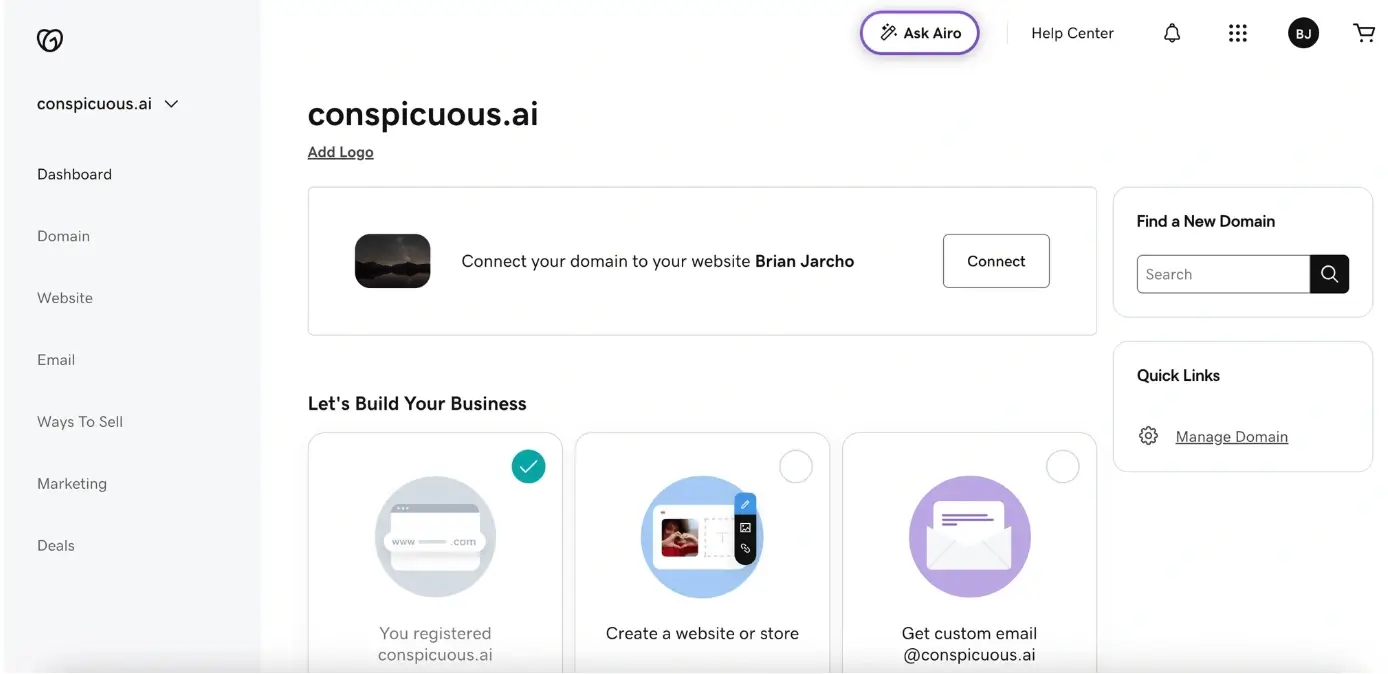
3. Locate DNS Record settings
Now click on “DNS” then “DNS Records” on the menu at the top
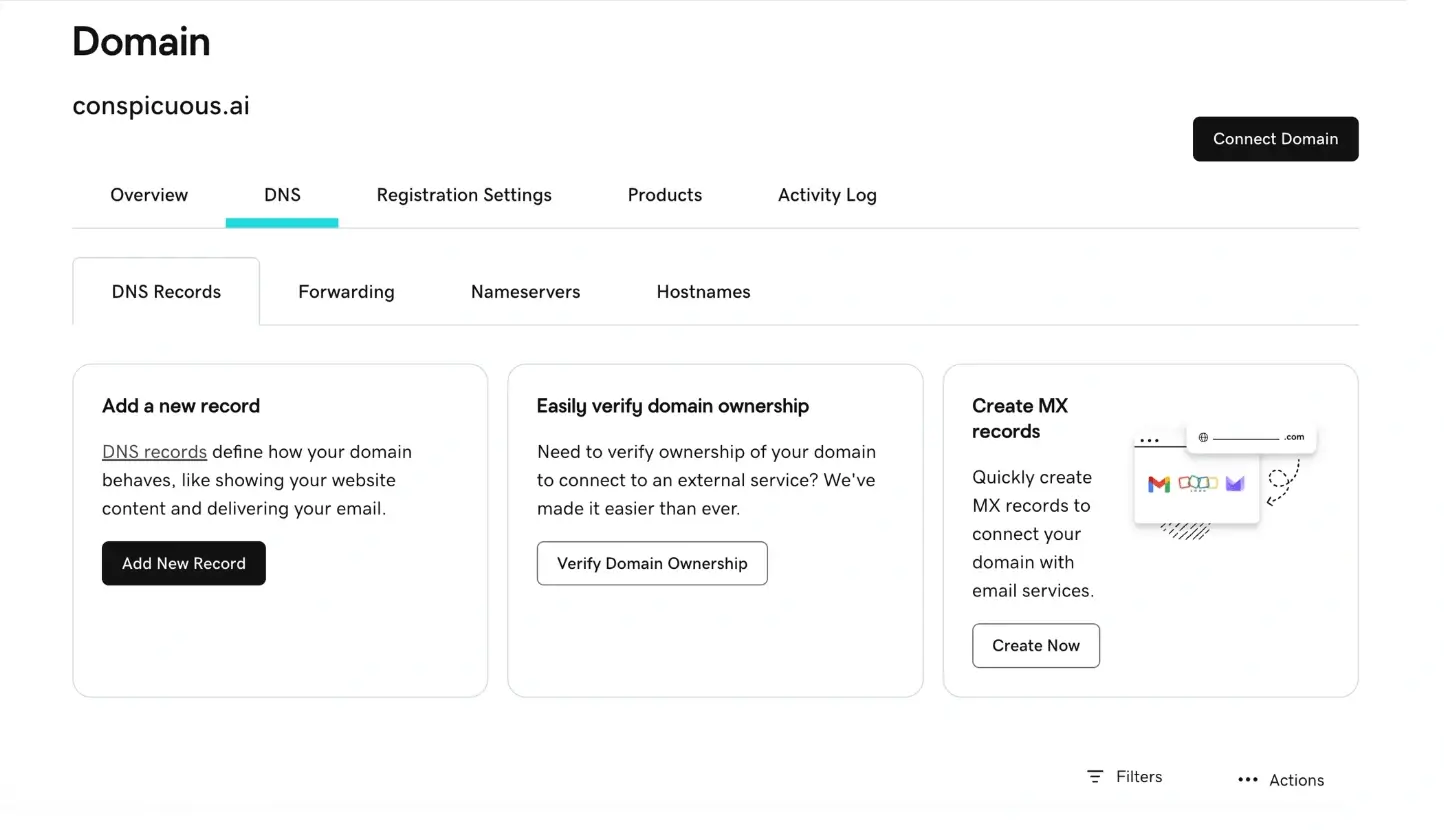
4. Locate the record you want to change
Click “Add New Record”
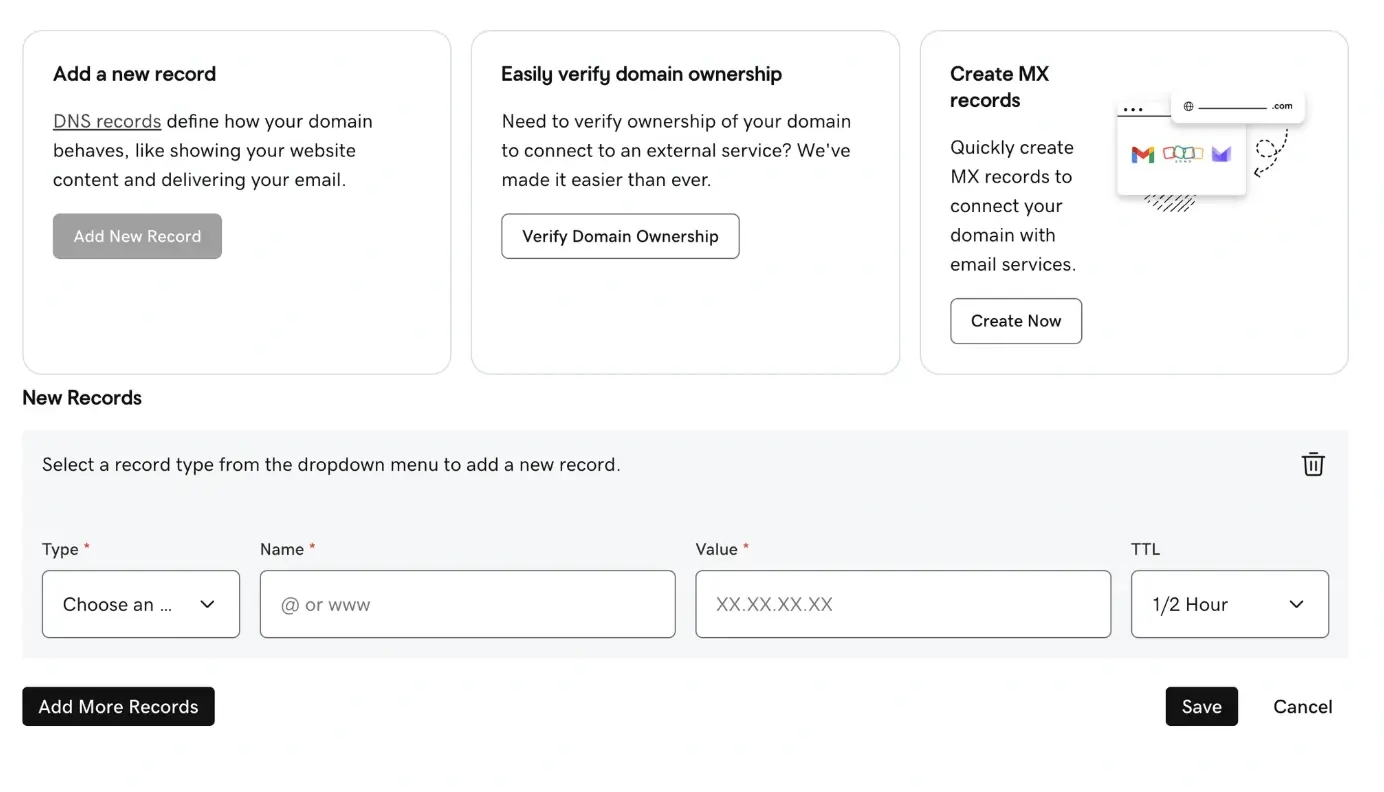
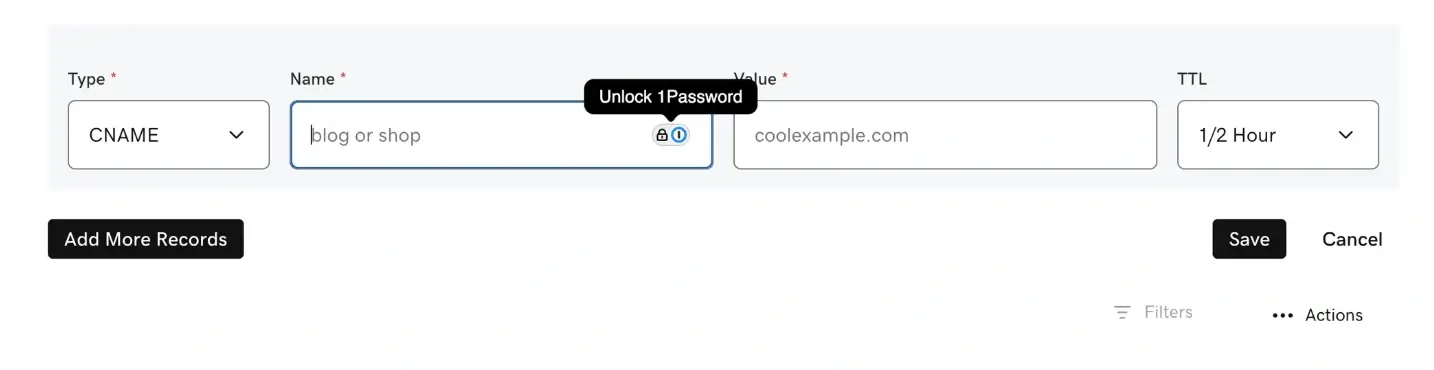
Select CNAME as the record type
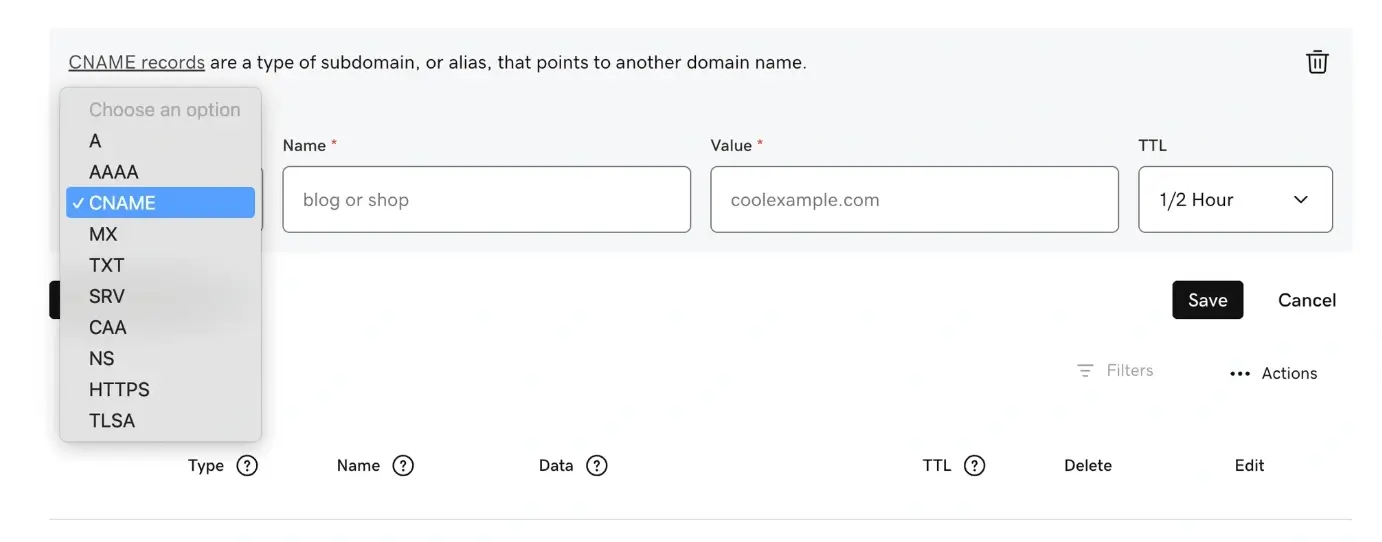
5. Enter the CNAME record details
Fill in the required fields:
Name: the subdomain (for example www or blog)
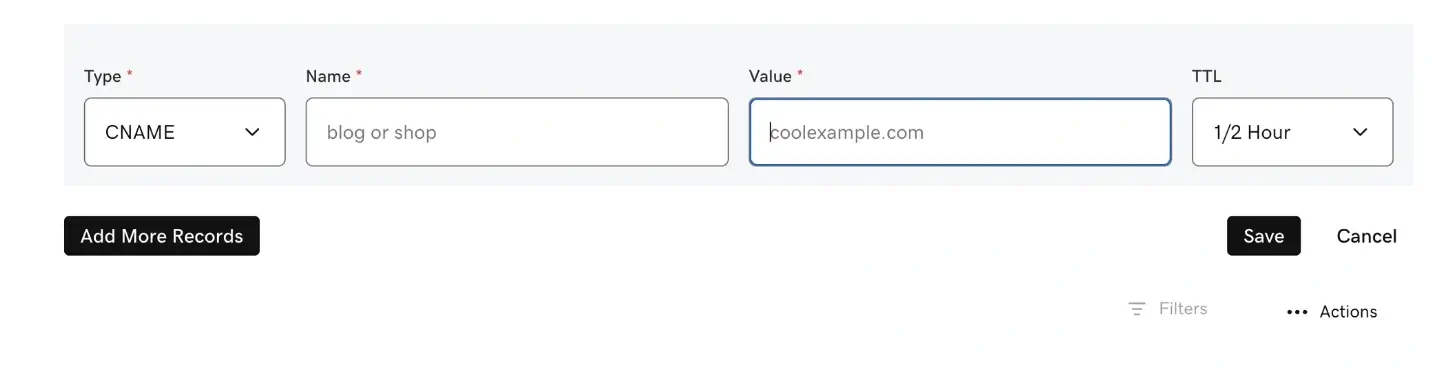
Value: the destination domain (for example example.host.com)
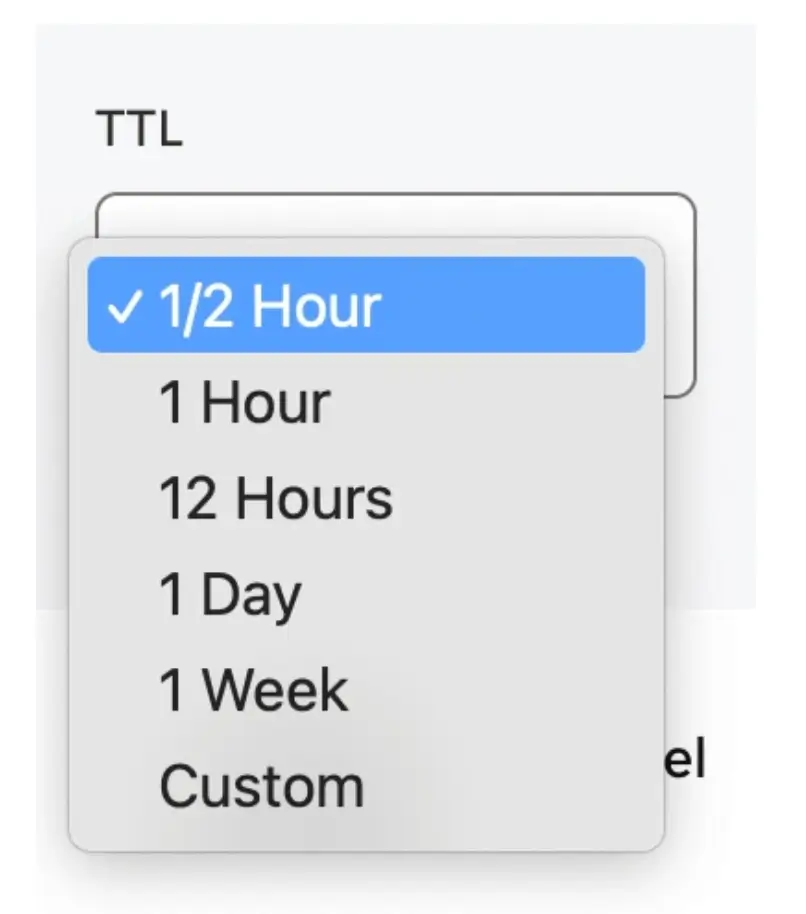
TTL: leave default unless needed
6. Save the record
Click Save
What Happens Next
CNAME changes usually take effect within a few minutes, but may take up to 24 hours depending on DNS caching.
Common Issues
- CNAME record not working
- Confirm the destination domain is correct
- Ensure there is no A record for the same host
- Unable to add DNS records
- Ensure the domain is using GoDaddy nameservers
- If not, DNS must be managed at your nameserver provider
We regularly review and update our guides to keep them accurate. If something looks off, email guides@snagged.com and we’ll fix it.